
Updated in version 2.0
Implant planning on iPhone and iPad, away from the workstation
Open a CBCT, review the mandibular canal, position each implant and check it in linked views. Save the plan or share a PDF from your iPhone or iPad. Implant planning on your own studies requires Pro.
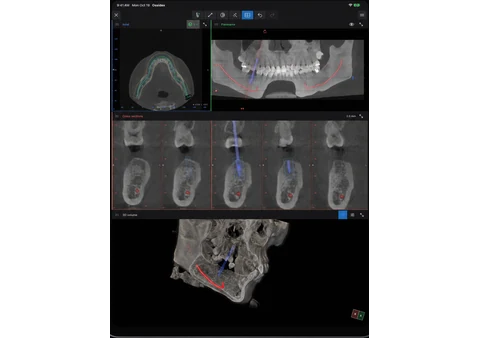
Implant planning in Ossidex


From a Romexis export to an iPad plan
You can bring a standard DICOM volume exported from Planmeca Romexis into Ossidex without running Romexis on the iPad. Choose the complete export folder or ZIP, open the volume and make your plan in Ossidex. See the Romexis export steps.
The image export does not transfer an editable Romexis implant plan, nerve tracing or annotation set. Romexis Viewer is a separate free viewer for Windows and Mac; Ossidex is an independent iPhone/iPad app with Pro features. This workflow avoids needing a workstation for this viewing and planning session, without claiming to replace every Romexis module or a clinic’s validated workflow.
Place and adjust implants
Place each implant yourself and adjust its position, angle and depth. Generic implants take the diameter and length you enter in millimetres. Ossidex does not choose a treatment or place implants automatically.
Linked panorama, cross-sections and 3D
Cross-sections, the panoramic reconstruction along the arch and the 3D view stay linked. Move or tilt an implant in one view and the others follow, so you check the same position from every side.
Proximity warnings
Proximity warnings flag an implant that comes close to another implant or to a mandibular canal. The default margins are 3 mm between implants and 2 mm to the canal; you can change both, show a margin zone around the implants and see which pairs could not be checked. Warnings are a geometric aid based on approximate shapes, not a safety guarantee.
AI mandibular canal segmentation
On compatible CBCT scans Ossidex can find the mandibular canals with AI segmentation that runs on the iPhone or iPad. The model is not part of the app download: it downloads once, the first time you use it. Review every canal path on the slices and correct it manually, or trace the canal yourself.
Implant library
Search more than 16,000 implants from 129 manufacturers by manufacturer and system, save favourites, or import a model folder. Search works offline; the details and the exact model of an implant download when you choose it. A generic preview is distinct from an exact manufacturer model.
Save and share a plan
Save and reopen the plan, undo or redo edits, export a PDF or full-arch report, and import or export plan packages. Packages with original surface scans and laboratory packages are available when the plan has the required source assets.
Surface scans and crowns
Import surface scans and crowns, align them with the CBCT and inspect their relationship to the planned implants. Check the alignment and source geometry before using them in a plan.
Guide CAD and its limits
The native workspace includes tooth-supported guide CAD with support surfaces, sleeves and inspection windows. Generation, geometry checks, review and STL export are separate steps. Software checks do not establish clinical validation, manufacturing suitability or fit.
Use the native app
Implant planning and the dental arch open the iPhone/iPad app offer. The browser provides 2D and MPR viewing; it does not edit implant plans or generate guides.
Implant planning is part of Pro, an optional subscription with the price shown in the App Store. The built-in dental CBCT and brain MRI samples let you try every tool.
Limits
Planning decisions and verification remain with the clinician. AI canal segmentation is a starting point to review, not a finding: check each canal on the slices and correct it. Ossidex does not segment teeth automatically or diagnose findings. Image resolution, source geometry and registration affect the result.
Details: Implant library and version 2.0 tools
Ossidex plans dental implants on CBCT in the iPhone and iPad app. Choose one of more than 16,000 implants from 129 manufacturers or enter the dimensions yourself, adjust position, angle and depth in linked cross-sections, panorama and 3D, follow proximity warnings for neighbouring implants and the mandibular canal, then save the plan or export a PDF report. Version 2.0 adds parallel alignment, angles between implants and bone density along each implant.
Frequently asked questions
Can I plan implants in the browser?
Implant planning and the dental arch open the iPhone/iPad app offer. The browser provides 2D and MPR viewing; it does not edit implant plans or generate guides.
Does Ossidex plan the treatment automatically?
Place each implant yourself and adjust its position, angle and depth. Generic implants take the diameter and length you enter in millimetres. Ossidex does not choose a treatment or place implants automatically.
Does every library entry include an exact model?
Search more than 16,000 implants from 129 manufacturers by manufacturer and system, save favourites, or import a model folder. Search works offline; the details and the exact model of an implant download when you choose it. A generic preview is distinct from an exact manufacturer model.
Does Ossidex find the mandibular canal automatically?
On compatible CBCT scans Ossidex can find the mandibular canals with AI segmentation that runs on the iPhone or iPad. The model is not part of the app download: it downloads once, the first time you use it. Review every canal path on the slices and correct it manually, or trace the canal yourself.
Which distances do the proximity warnings use?
Proximity warnings flag an implant that comes close to another implant or to a mandibular canal. The default margins are 3 mm between implants and 2 mm to the canal; you can change both, show a margin zone around the implants and see which pairs could not be checked. Warnings are a geometric aid based on approximate shapes, not a safety guarantee.
Is implant planning free?
Implant planning is part of Pro, an optional subscription with the price shown in the App Store. The built-in dental CBCT and brain MRI samples let you try every tool.
Related pages
Dental panoramic arch and cross-sections from any CBCT
Trace the dental arch on a CBCT and get a live panorama with numbered cross-sections, tooth numbering, HU probe and a PDF report — on iPad and iPhone.
Dental CBCT viewer
Panoramic arch, cross-sections, MPR and 3D for cone beam CT from any scanner.
Dentists
CBCT from any scanner at the chair: arch, cross-sections, MPR, 3D and TMJ MRI.
Reviewing a CBCT before an implant
Before an implant, review CBCT arch views, cross-sections, ridge dimensions, canal and sinus proximity, then plan it in the Ossidex app on iPhone or iPad.
DICOM measurements and PDF reports on iPhone and iPad
Measure length, angles and Hounsfield units on CT, CBCT and MRI in Ossidex, annotate the view, and export an image or a one-page PDF report, anonymized.