
Any scanner
Open a CBCT scan from any scanner on iPad or iPhone
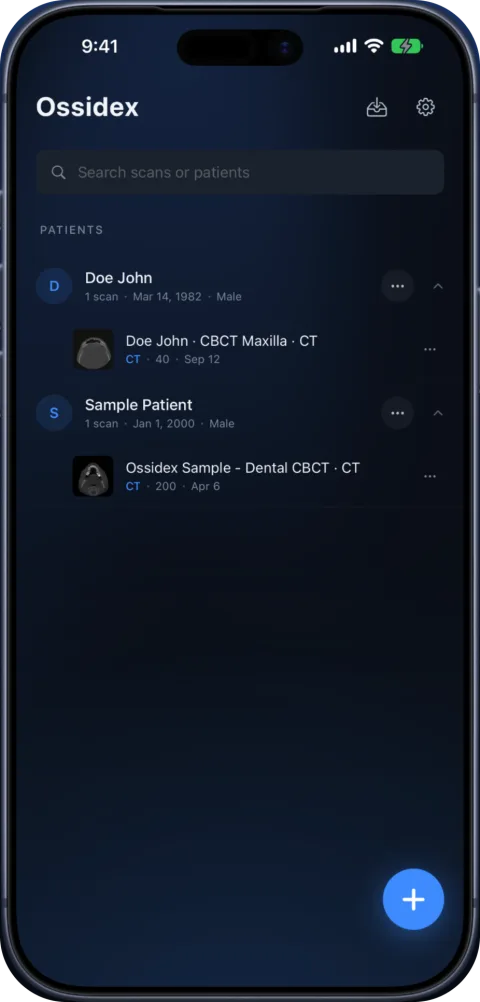
To open a CBCT from any scanner on iPad or iPhone, you need its standard DICOM files, not the Windows viewer or a proprietary project file. Copy the disc folder or DICOM export to the Files app, or send it as a link, and import it in Ossidex (formerly MedScan), a DICOM viewer app for iPhone and iPad — no laptop needed.
What is on a CBCT disc
Patient discs and USB sticks from dental imaging centres look different from brand to brand, but they are built from the same parts:
| What you see | What it is | Does Ossidex use it? |
|---|---|---|
DICOMDIR file | An index of the DICOM images on the disc (DICOM Part 10 media) | Yes — read when valid; otherwise the folder is scanned |
Folders of images (DICOM, IMAGES, DICOMRM, numbered folders) | The DICOM slices themselves, often without file extensions | Yes — these are the scan |
One large .dcm file | A multi-frame DICOM holding the whole volume | Yes |
.exe, autorun.inf, DLLs, a viewer folder | A Windows viewer (Romexis Viewer, Sidexis 4 Viewer, CS 3D Imaging Lite, Ez3D-i Simple Viewer…) | No — skipped; it only runs on Windows |
Project files (.inv, .apj, vendor project formats) | Proprietary files of a planning or viewing program | No — export to DICOM first |
What to export if you made the scan
If you are exporting from your own CBCT software to view the volume on an iPad, choose the DICOM export. A single multi-frame file or a set of single-frame slices both work. Anonymisation and DICOMDIR options are fine to use. Adding the vendor viewer does no harm — Ossidex ignores it — but it makes the export larger. Save the export to a folder you can reach from the iPad (a shared network folder synced to Files, iCloud Drive, a USB-C drive) or zip it and send it as a link.
If you received the scan
Copy the entire disc or USB folder, not just the file you think is the scan. On a Mac or PC, drag the whole disc into iCloud Drive or onto a USB-C stick; on the iPad, import that folder. If you were sent a ZIP, RAR, 7z or ISO, import it as is — Ossidex opens archives, including password-protected ones and archives inside archives. Detailed walkthroughs: DICOM CD, disc with only an .exe viewer, cloud link.
When it still does not open
Most failures come from copying only part of a disc, a download that stopped early, or a disc that holds only a proprietary project. The troubleshooting guide covers each case: study won’t open. If your scan still fails, write to support@ossidex.com — new disc layouts are added regularly.
Instructions by vendor
Planmeca Romexis
Open Romexis DICOM exports and patient discs made with Romexis Viewer.
Dentsply Sirona Sidexis / Galileos
Wrap&Go discs and DICOM exports from Sidexis 4 and Galileos.
Carestream CS 3D Imaging
Discs with CS 3D Imaging Lite and DICOM volume exports.
Vatech Ez3D-i
Ez3D-i discs and exports with DCM files and the Simple Viewer.
OnDemand3D
Export DICOM from Cybermed OnDemand3D instead of a project file.
NewTom NNT
DICOM exports and NNT Viewer discs from NewTom CBCT units.
i-CAT / KaVo / Invivo
Tx STUDIO exports and converting Invivo .inv/.apj files to DICOM.
Frequently asked questions
Do I need the viewer program from the disc?
No. The viewer on the disc is a Windows program. Ossidex reads the DICOM files next to it directly.
Which CBCT brands are supported?
Any brand whose software exports standard DICOM — which is all current dental CBCT systems, including Planmeca, Dentsply Sirona, Carestream, Vatech, Cybermed OnDemand3D, NewTom and i-CAT.
Can Ossidex open proprietary project files?
No. Files such as Invivo .inv/.apj or planning projects must be exported to DICOM in the program that made them.
Related pages
Dental CBCT viewer
Panoramic arch, cross-sections, MPR and 3D for cone beam CT from any scanner.
Open a DICOM CD on iPhone or iPad
Open a CT, MRI or CBCT disc from a hospital or dental clinic on iPhone or iPad: copy the disc folder, import it in Ossidex, and skip the Windows viewer.
DICOMDIR: what it is and how to open it on iPhone, iPad or PC
A DICOMDIR is the index file on a medical imaging disc. Learn what it contains, why it sometimes fails, and how to open the whole disc on iPhone or iPad.
Open DICOM in ZIP, RAR, 7z or ISO archives on iPhone and iPad
Ossidex unpacks DICOM studies from ZIP, RAR (incl. multi-volume), 7z, TAR/GZ and ISO disc images — including password-protected archives — on iPhone and iPad.