
Planmeca Romexis
Open Planmeca Romexis CBCT scans on iPad and iPhone
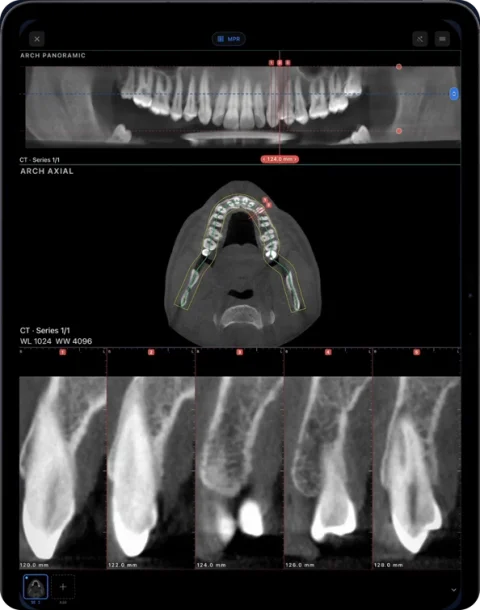
Romexis Viewer, Planmeca’s free viewer, runs on Windows and Mac, not on iPad. To open a Planmeca Romexis CBCT on iPad or iPhone, use the DICOM files from a Romexis export or patient disc in Ossidex, a DICOM viewer app for iPhone and iPad, which shows them as an arch with cross-sections, MPR and 3D.
Romexis Viewer vs Ossidex
| Romexis Viewer | mRomexis (iOS) | Ossidex | |
|---|---|---|---|
| Needs a Romexis server | No | Yes | No |
| Platforms | Windows, macOS | iPad | iPhone, iPad |
| Price | Free download | Paid app ($48.99 in the US App Store; last updated February 2019) | Free download; Pro subscription for arch/MPR/3D |
| Opens a Romexis disc or export | Yes | No — connects to a Romexis server on the practice network | Yes — reads the DICOM |
| Other vendors’ CBCT | Opens DICOM | No | Yes — any standard DICOM |
| Panoramic arch with cross-sections | Yes | Server-dependent | Yes |
Romexis Viewer is the natural choice on a clinic computer and is made by the same company as the scanner. Ossidex covers the case where you want the scan on a tablet or phone, or you receive Romexis scans without having Romexis.
What a Romexis export contains
Planmeca’s export guide describes two DICOM options for 3D volumes:
- Single multi-frame DICOM file — the whole volume in one file. Planmeca recommends it, and it is the most convenient for an iPad too.
- Set of single-frame DICOM files — one file per slice, often around 500 files.
Both can be exported together with Romexis Viewer, or burned to CD with the viewer. In that case the viewer sits in the same folder as the DICOM file-set and its DICOMDIR, and on a Mac the disc is started with a “RomexisViewer Launcher”. Ossidex does not need the viewer: it reads the DICOMDIR or scans the folder and picks up the volume. The exact names of the viewer files differ between Romexis versions.
How to open a Romexis scan in Ossidex
- Export as DICOM. In Romexis, export the 3D image as DICOM — a single multi-frame file is simplest. Including the viewer is optional. If you received a disc, skip this step.
- Copy the whole folder. Copy the export folder or the whole disc (with
DICOMDIRand the image folders) to iCloud Drive or a USB-C drive, or zip it and share the link. - Import. In Ossidex tap +, choose the folder, the ZIP or paste the link. The viewer files are skipped automatically.
- View. Open the study and switch to the arch view for a panorama with cross-sections, or to MPR and 3D.
Reading a Planmeca volume in Ossidex
Once imported, the Romexis volume behaves like any other CBCT in the app. The arch view is usually the first stop for dental questions: trace the arch on an axial slice, and the panorama and numbered cross-sections appear underneath, as in Romexis’s own implant and panoramic views. MPR gives axial, sagittal and coronal planes with linked crosshairs, and the 3D view renders the volume with bone and teeth presets. Measurements are taken from the DICOM pixel spacing that Romexis writes into the export, so distances are in millimetres.
What does not carry over: implant plans, nerve tracings, annotations and segmentations made inside Romexis are stored in Romexis, not in the DICOM export. You see the image data, and you can add your own measurements in Ossidex.
Sending a Romexis scan to a colleague with an iPad
If a referring dentist works on an iPad, a DICOM export in a ZIP shared through iCloud Drive, Google Drive, Dropbox, OneDrive or WeTransfer is usually the easiest route: the recipient pastes the link into Ossidex and the download and import happen in one step (link import). Enable anonymisation in the Romexis export if the scan should not carry the patient’s name, and include the Romexis Viewer only if the recipient might also open it on a Windows PC or Mac.
Common problems
- “Nothing recognised” — usually only the viewer folder was copied. Copy the folder that contains
DICOMDIRand the image files. - Only 2D images appear — the export may contain only panoramic or intraoral images. Export the 3D volume.
- Scan sent through Romexis Cloud — download the DICOM from the referral first, then import the file.
- Very large single-frame exports — zip the folder before sending; Ossidex opens the archive directly.
Planmeca Romexis is a trademark of Planmeca Oy. Ossidex is an independent viewer and is not affiliated with, endorsed by or sponsored by Planmeca Oy. Vendor details below come from the vendor’s public documentation and may change between software versions.
Frequently asked questions
Is there a Romexis Viewer for iPad?
Planmeca’s iOS app, mRomexis, is paid and shows 3D images only when connected to a Romexis server on the local network. Romexis Viewer itself runs on Windows and Mac. Ossidex opens Romexis DICOM exports and discs on iPad without a server.
Can I open a Romexis disc on a Mac?
Yes, with Romexis Viewer (Planmeca provides a Mac launcher on the disc) — or on an iPad with Ossidex.
Multi-frame or single-frame export?
Both open in Ossidex. A single multi-frame file is faster to copy and import.
Does Ossidex open Romexis 2D images?
If they are exported as DICOM, yes — panoramic, cephalometric and intraoral images open as 2D images.
Sources
Related pages
Open CBCT from any scanner
What is on a CBCT disc, what to export, and vendor-by-vendor instructions.
Dental CBCT viewer
Panoramic arch, cross-sections, MPR and 3D for cone beam CT from any scanner.
Dentsply Sirona Sidexis / Galileos
Wrap&Go discs and DICOM exports from Sidexis 4 and Galileos.
i-CAT / KaVo / Invivo
Tx STUDIO exports and converting Invivo .inv/.apj files to DICOM.
Dental panoramic arch and cross-sections from any CBCT
Trace the dental arch on a CBCT and get a live panorama with numbered cross-sections, tooth numbering, HU probe and a PDF report — on iPad and iPhone.
Disc with only a Windows .exe viewer
Dental and hospital discs often ship a Windows-only viewer. The images next to it are standard DICOM — copy the whole folder and open it on iPad, iPhone or Mac.