
For patients
View your own MRI or CT scan on iPhone or iPad
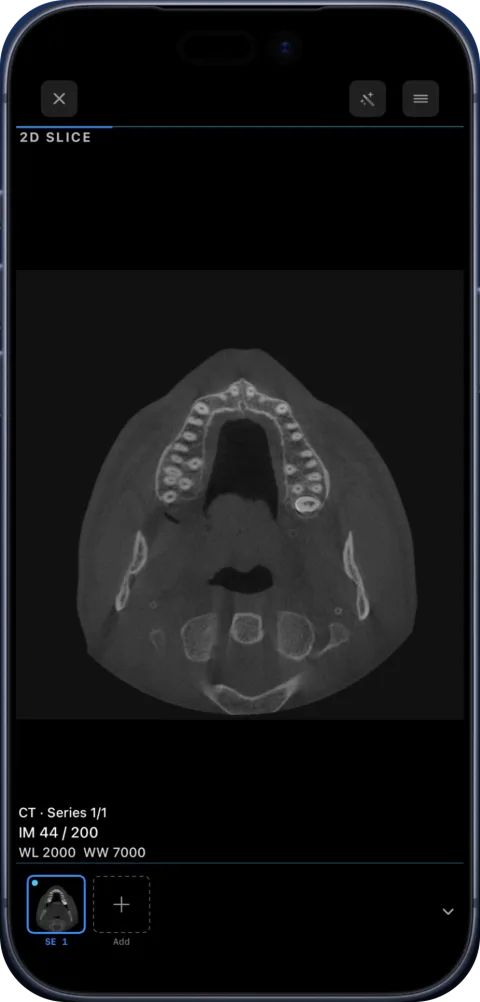
If you were given a CD, USB stick or download link with your MRI, CT or dental scan, you can view it at home on iPhone or iPad with Ossidex, a DICOM viewer app. Viewing and scrolling through your scan in 2D is free, needs no account and stays on your device. Your doctor interprets the images.
What you were given
Hospitals and imaging centres hand over scans in DICOM, the standard format for medical images. It usually comes as:
- A CD, DVD or USB stick with folders of files and a small Windows program — you do not need that program.
- A download link — Google Drive, Dropbox, WeTransfer, OneDrive or a hospital portal, often a ZIP file.
- An email attachment — usually a ZIP.
How to open it
- Install Ossidex. Download Ossidex from the App Store on your iPhone or iPad. No sign-up.
- Get the files onto the device. For a disc, copy the whole disc folder to iCloud Drive on a computer (or onto a USB-C stick). For a link or email, just keep the link or save the ZIP. Disc step-by-step.
- Import. In Ossidex tap +, then choose the folder or ZIP, or paste the link.
- Look through the scan. Open the study, swipe to scroll through slices, pinch to zoom and drag to change brightness and contrast.
Reading your scan
A scan is a set of images, not a diagnosis. Only a radiologist’s report and your doctor can tell you what the images mean. Use Ossidex to look at your images and to show them to a doctor — not to draw conclusions on your own.
Seeing a “spot” on a slice is normal: many normal structures look surprising out of context. If you have questions, bring the scan and the written report to your doctor.
Privacy
Scans are opened and processed on your iPhone or iPad. There is no account, and your images are not uploaded to Ossidex servers. If you want to send your scan to another doctor, Ossidex can make an anonymised copy without your name.
Opening a disc from the hospital
- Copy the disc. Insert the CD into any computer, copy everything on it into a folder, and send the folder to your phone (AirDrop, iCloud Drive or a zip by email). Many clinics can also give you a USB stick or a download link instead.
- Import in Ossidex. Tap + and choose the folder in Files. If you pick the .exe program from the disc by mistake, Ossidex suggests importing the whole folder instead.
- Find your series. Your study appears under your name with one or more series — for MRI, each sequence is a separate series.
- Scroll. Swipe to move through the slices; pinch to zoom; drag with two fingers to change brightness and contrast.
If you received a link
Imaging centres increasingly send scans as a link. Copy it and paste it into Ossidex: Google Drive (files and folders), Dropbox, OneDrive, iCloud Drive shared files, WeTransfer, Yandex Disk, Mail.ru Cloud and direct download links work. If the link opens a web page with a viewer instead of downloading a file, look for a “Download” button on that page or ask the clinic for a download link. More about links.
Questions to ask your doctor
- Which series and which slices show the finding the report mentions?
- What does this structure normally look like, for comparison?
- Is there an earlier scan we should compare with?
- Do I need a follow-up scan, and in what format should I bring it?
Bring your phone or tablet to the appointment: having the images ready in Ossidex makes it easy for your doctor to point at what they mean.
Frequently asked questions
Is it free to view my scan?
Yes. Importing and scrolling through your scan in 2D, adjusting brightness and measuring are free.
Can I view my scan without a computer?
If you received a link or ZIP, yes — everything happens on the phone. For a CD you need a computer or a USB-C disc drive once, to copy the files.
Will my images be uploaded?
No. They stay on your iPhone or iPad.
Can Ossidex tell me what is wrong?
No. Ossidex shows images; your doctor interprets them.
Related pages
Open a DICOM CD on iPhone or iPad
Open a CT, MRI or CBCT disc from a hospital or dental clinic on iPhone or iPad: copy the disc folder, import it in Ossidex, and skip the Windows viewer.
View MRI scans on your phone
View MRI scans on iPhone or iPad: import the disc or link, understand series and sequences like T1, T2 and FLAIR, link windows and adjust contrast in Ossidex.
Open a scan from a cloud link
Open a CT, MRI or CBCT shared via Google Drive, Dropbox, OneDrive, WeTransfer or iCloud on iPhone or iPad: paste the link in Ossidex to download it.
DICOM viewer without a computer: review CT and CBCT on an iPad
Can you review a CT or dental CBCT on an iPad instead of carrying a laptop? What works without a computer, how to get the files on the device, and the limits.
Free DICOM viewer for iPhone and iPad: what’s free, what’s Pro
Ossidex is free to download: import any CT, CBCT or MRI study, view it in 2D and measure. Here is exactly what is free and what Pro adds — no surprises.