
Guide
How to open a DICOM CD or USB on iPhone without a computer
You can’t read a CD directly on an iPhone or iPad — iOS doesn’t support optical drives. Copy the disc once on any computer (or ask the clinic for a USB stick or download link), then open the folder in Ossidex. The app reads the DICOM images directly and finds every series, so you do not need the Windows viewer that came on the disc.
No computer at all?
If there is no computer with a disc drive around, ask the imaging centre for the same study in a form an iPhone or iPad can read:
- A USB-C stick with the disc contents — plug it into the iPad and import the folder from Files.
- A download link (Google Drive, Dropbox, WeTransfer or the centre’s own portal with a download button) — paste it into Ossidex.
- A ZIP by email for smaller studies such as X-rays or a single CBCT.
What to write to the clinic: “Could you send me the full DICOM study of my scan on [date] as a ZIP download link or on a USB-C stick instead of a CD? I view it on an iPad, which has no disc drive.”
More options in DICOM viewer without a computer.
Step by step: import the disc in Ossidex
- Copy the whole disc. On a computer, copy the entire disc (all folders and the DICOMDIR file, not just one subfolder) to a folder or a ZIP.
- Move it to the device. AirDrop the folder or ZIP, save it to Files from a USB-C drive, or upload the ZIP to a cloud service.
- Install Ossidex. Download Ossidex from the App Store on the iPhone or iPad. No account is needed.
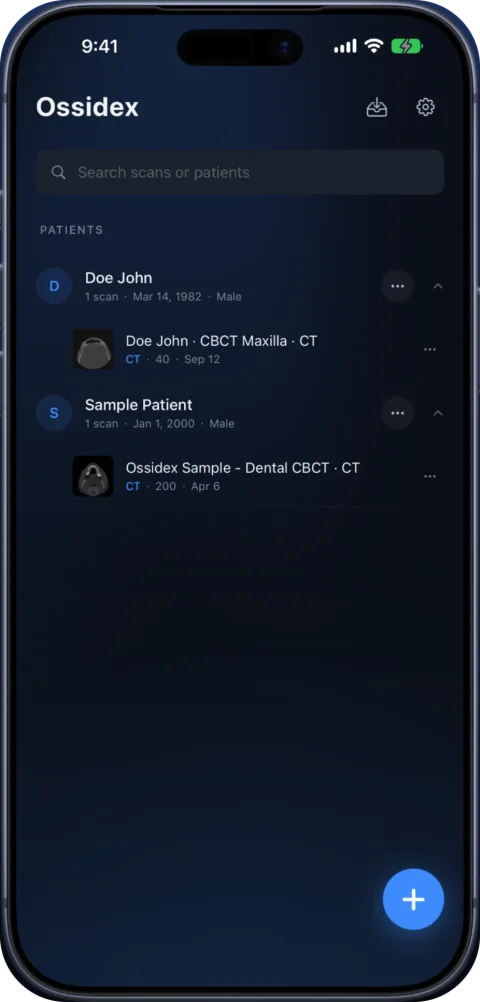
- Import. Tap + in Ossidex and choose the folder or ZIP in Files, or paste the cloud link. Ossidex reads DICOMDIR when it is valid and scans the files directly when it is not.
- Open the study. Pick the patient and study. Every series appears as a thumbnail; tap one to scroll through the slices, adjust window/level and measure.
Tip: if you pick the .exe viewer on the disc by mistake, Ossidex suggests importing the whole folder instead.
Three ways to get the disc onto your iPhone or iPad
iPhones and iPads have no disc drive, so the first step is to copy the disc somewhere the device can reach. Pick whichever is easiest:
| Method | What you need | Best for |
|---|---|---|
| Computer → AirDrop or Files | A Mac or PC with a disc drive (built-in or USB) | Most people; fastest for large CBCT |
| USB-C drive or card reader | A computer to copy the disc once, then a USB-C/Lightning drive | Offline transfer, clinics without cloud |
| ZIP + cloud link | A computer and a Google Drive, Dropbox, OneDrive or iCloud account | Sending the scan to someone else |
On a Mac, AirDrop the folder straight to the iPhone or iPad (it lands in Files → Downloads). On Windows, copy the folder to a USB drive or zip it and upload the ZIP to a cloud service. Ossidex can import the ZIP directly — no need to unzip on the phone.
Viewing an MRI or CT disc without the included viewer
The same approach answers the common question “how do I view an MRI disc on a Mac or iPad without the Windows program?”. Disc viewers from scanner and PACS vendors are usually Windows-only, and some install software before they run. The DICOM images next to them are standard files. Once the folder is in Files, Ossidex opens MRI series side by side with linked reference lines, CT with Hounsfield-based window presets, and dental CBCT with MPR, 3D and a panoramic arch. See discs with only a Windows .exe viewer for vendor-specific notes.
If the disc does not open
| What you see | Likely cause | What to do |
|---|---|---|
| “Nothing recognised” | Only the viewer folder was copied | Copy the whole disc including the DICOMDIR and image folders |
| Some series missing | Copy stopped early or disc has read errors | Copy again; check the total size matches the disc |
| Password prompt | The ZIP was encrypted by the sender | Ask the sender for the password |
| Only a project file (.inv, .apj, project folder) | Proprietary format, not DICOM | Ask the clinic to export standard DICOM |
| App slows on a huge study | Very large study for the device memory | Open one series at a time; an iPad with more RAM helps |
More fixes: DICOM study won’t open.
Privacy
Scans are opened and processed on your iPhone or iPad. There is no account, and your images are not uploaded to Ossidex servers.
Try the viewing workflow on a sample
Try every tool on the built-in dental CBCT and brain MRI samples. For a disc import, check that the complete folder contains the original image files. MPR, 3D and dental reconstruction require compatible volume data; no viewing tool can recover slices missing from the copy.
Details: CBCT on iPhone: disc folder, MPR and dental arch
CBCT on iPhone: disc folder, MPR and dental arch. Import a whole disc folder, open 200 CBCT images, inspect MPR, build the dental arch and place a ruler on a cross-section.
Recorded on October 15, 2026: Ossidex 1.11.2, iPhone 17 Pro Simulator, iOS 27.0. A local development build from the released version’s source, with Pro tools enabled. Pauses are edited; there is no voiceover.
Details: What is on a medical imaging disc
Discs from hospitals, imaging centres and dental clinics follow the DICOM media standard (NEMA PS3.10 and PS3.12). They usually contain three kinds of things:
- The images — hundreds or thousands of files, often in folders named
DICOM,IMAGES,DICOMRMor with numeric names, and often without a.dcmextension. - A DICOMDIR file at the root — an index that lists patients, studies and series and where each image file sits.
- A viewer program — typically a Windows
.exe(and sometimes a Mac launcher), plus autorun files, fonts and help documents. The images do not depend on it.
Everything a viewer needs is in the image files themselves. That is why copying the full folder and importing it in a DICOM viewer works even when the disc’s own viewer cannot run on your device.
Details: Opening on a Mac or Windows PC instead
If you have a computer at hand, the disc’s own viewer or a desktop DICOM viewer will open it directly. Ossidex is for when you want the scan on the device you carry — to read it between patients, show it during a consultation, or keep it after the disc is gone. Once imported, the study stays in the app’s library and opens offline, so you can return the disc or throw away the ZIP.
Help with a specific file or import problem
Frequently asked questions
Can an iPhone read a CD directly?
No. iPhones and iPads have no optical drive, and USB disc drives are not supported by iOS for data discs. Copy the disc on a computer first, then move the folder or a ZIP to the device.
Do I need the DICOMDIR file?
It helps but is not required. Ossidex uses DICOMDIR when it is valid and falls back to scanning every file in the folder when it is missing or incomplete.
Can I open the disc on a Mac without the Windows viewer?
Yes — the images are standard DICOM. On a Mac you can use a desktop DICOM viewer, or AirDrop the folder to an iPhone or iPad and open it in Ossidex.
Is opening a DICOM CD in Ossidex free?
Ossidex is free to download and try, including the built-in dental CBCT and brain MRI samples with every tool. Pro unlocks the full toolset on your own studies; current terms are shown in the App Store.
How long does the import take?
Usually seconds to a minute, depending on the number of images and the device. Large CBCT studies with compressed images take longest.
Related pages
DICOMDIR: what it is and how to open it on iPhone, iPad or PC
DICOMDIR is the index file of a medical imaging disc. Open the whole disc on iPhone, iPad, Mac or PC, and fix a DICOMDIR that shows no images.
Carestream, Sidexis and Romexis exports
Bring Carestream CS 3D, Sidexis or Romexis scans to Ossidex on iPad. Follow vendor export steps and learn which images and plans transfer.
Study won’t open: fixes
Fixes for DICOM studies that will not open: incomplete downloads, only the viewer copied, proprietary files, password archives, portal links, memory.
Patients
Got a CD or link with your scan? View it at home, privately.