
J. Morita
Open Morita i-Dixel and One Volume Viewer CBCT scans on iPad and iPhone
J. Morita CBCT units (3D Accuitomo, Veraviewepocs 3D, Veraview X800) are run from i-Dixel, and patients usually receive a One Volume Viewer disc: a Windows viewer plus the volume in Morita’s own .vol format rather than DICOM. Ossidex, a DICOM viewer app for iPhone and iPad, reads that .vol file directly, so the disc opens as a CBCT volume in MPR, 3D and the arch view without a DICOM export. DICOM exported from i-Dixel opens as well.
How to open a Morita scan in Ossidex
- Copy the disc. Copy the whole disc or USB folder — the
CT_…folder withCT_0.volandCtStatus.csv— to iCloud Drive or a USB-C drive, or zip it and share a link. - Import. In Ossidex tap + and choose the folder, the ZIP or the link. The viewer files are skipped and the volume is converted on the device, which takes up to a minute or two for a large field of view.
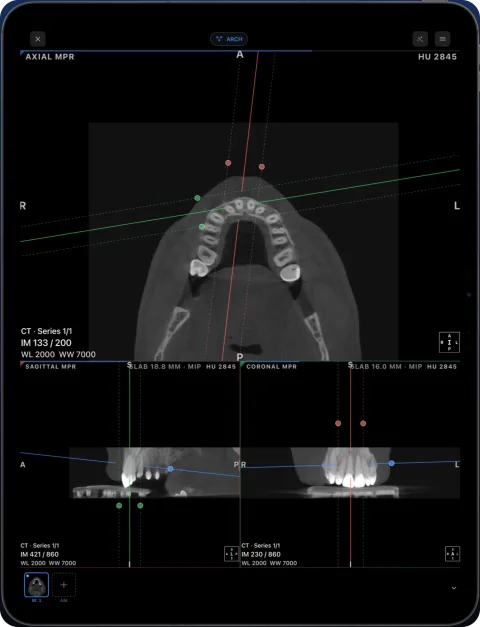
- View. Open the scan in MPR, 3D or the arch view with cross-sections.
Common problems
- “Nothing recognised” on an older app version — update Ossidex from the App Store; earlier versions saw only the Windows viewer on a One Volume Viewer disc.
- Only the viewer folder was copied — the volume lives in the
CT_…folder next to the program. Copy the whole disc. - Large volumes — a full field of view at 0.08 mm needs a few hundred megabytes of free space while it is converted; keep the app open until the import finishes.
i-Dixel and One Volume Viewer is a trademark of J. Morita Mfg. Corp.. Ossidex is an independent viewer and is not affiliated with, endorsed by or sponsored by J. Morita Mfg. Corp.. Vendor details below come from the vendor’s public documentation and may change between software versions.
 rtAttenPenn · Zenodo 3873446 · CC BY 4.0
Help with a specific file or import problem
Frequently asked questions
Can Ossidex open a Morita .vol file?
Yes. Volumes from One Volume Viewer and i-Dixel One Data Viewer discs open as a CBCT series; the viewer program itself is not needed.
Is there a One Volume Viewer for Mac or iPad?
Morita’s viewer runs on Windows. On an iPad or iPhone, Ossidex opens the same disc.
Should I still ask for DICOM?
A DICOM export remains the most portable choice and carries patient orientation. The .vol disc is enough to view and measure the volume.
Details: What is on a One Volume Viewer disc
The disc i-Dixel burns for a patient (“One Volume Viewer”, or “i-Dixel One Data Viewer” for the installed version) contains the viewer program and one folder per scan:
| What you see | What it is | Does Ossidex use it? |
|---|---|---|
CT_<date and time> folder with CT_0.vol | The reconstructed volume in Morita’s own format: voxel size and grey values | Yes — read as the CBCT volume |
CtStatus.csv | Scan settings, including the default window, patient name and date | Yes — used for the window and the study name |
OneVolumeViewer.exe, DLLs, .cjstyles files, manuals in PDF | The Windows viewer and its files | No — skipped; it only runs on Windows |
.dcm files or a DICOM folder | A DICOM export, if the sender added one | Yes |
Copy the whole disc. A .vol file on its own also opens, but the CSV next to it supplies the default window and the patient name.
Details: Reading a Morita volume in Ossidex
The volume opens as one CBCT series with the voxel size recorded by i-Dixel (0.08 to 0.25 mm depending on the field of view) and the window the clinic saw in One Volume Viewer. Grey values are Morita’s own values, not calibrated Hounsfield units, as with most CBCT; the HU probe shows them as relative values. The .vol file does not record patient orientation, so left and right are not labelled — if side matters for your case, use a DICOM export, which carries orientation. Measurements, annotations and implant plans made in i-Dixel are not part of the volume and do not appear.
Details: Exporting DICOM from i-Dixel
If you work in i-Dixel and want DICOM for an iPad or for other software, open the volume and use Save to DICOM File (the disk icon in the Tools area) with axial images at the smallest thickness and interval, or DICOM storage → Save as file from the patient folder menu, depending on the version. The export is written to the folder set as the Exports folder. Single-frame DICOM from i-Dixel opens in Ossidex with patient orientation.
Related pages
Open CBCT from any scanner
What is on a CBCT disc, what to export, and vendor-by-vendor instructions.
Dental CBCT viewer
Panoramic arch, cross-sections, MPR and 3D for cone beam CT from any scanner.
Dentsply Sirona Sidexis / Galileos
Galileos Viewer discs open as they are; Sidexis 4 DICOM exports work too.
Planmeca Romexis
Open Romexis DICOM exports and patient discs made with Romexis Viewer.
What is a DICOM file? The medical imaging format explained
DICOM is the standard file format for medical images like CT, MRI and X-ray. What is inside a DICOM file, how studies and series work, and how to open one.
Carestream, Sidexis and Romexis exports
Bring Carestream CS 3D, Sidexis or Romexis scans to Ossidex on iPad. Follow vendor export steps and learn which images and plans transfer.