
i-CAT · KaVo · DEXIS
Open i-CAT and KaVo CBCT scans on iPad and iPhone
i-CAT and KaVo CBCT scans (the KaVo imaging brands are now DEXIS) are often shared as Invivo .inv or .apj files, which only Invivo opens. To view them on iPad or iPhone, export or save them as standard multi-file DICOM and import that into Ossidex, a DICOM viewer app for iPhone and iPad.
Brands and file types
KaVo’s imaging brands — i-CAT, Gendex, Instrumentarium and Soredex — were rebranded as DEXIS. i-CAT systems use Tx STUDIO for acquisition, and many practices review and share cases in Invivo (Anatomage, now Osteoid), which DEXIS offers as Invivo 6.
| File | What it is | Opens in Ossidex? |
|---|---|---|
.dcm / DICOM folder | Standard DICOM slices | Yes |
.inv | Invivo file | No — save as DICOM first |
.apj | Anatomage project | No — save as DICOM first |
.amg | Anatomage file | No |
Osteoid’s documentation describes a Save As → Multi-file DICOM option in Invivo, which turns an Invivo case back into standard DICOM.
How to open an i-CAT or Invivo case in Ossidex
- Get DICOM. Export the scan as DICOM from Tx STUDIO, or in Invivo use Save As → Multi-file DICOM. If you only have an .inv or .apj file, ask the sender for DICOM.
- Copy to the device. Copy the DICOM folder to iCloud Drive or a USB-C drive, or zip it and share a link.
- Import. In Ossidex tap + and choose the folder, archive or link.
- View. Open the CBCT in MPR, 3D or the arch view.
Reading the scan in Ossidex
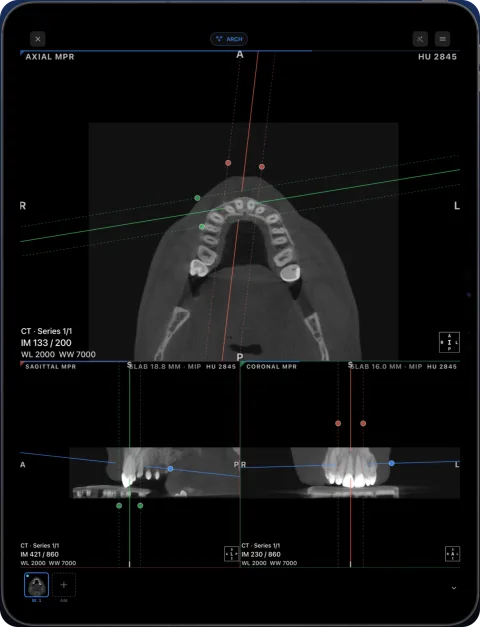
i-CAT volumes exported as DICOM open as one CBCT series. The arch view gives a panorama with numbered cross-sections for implant sites and impacted teeth, MPR shows three linked planes with oblique and slab options, and the 3D view renders bone, teeth and airway. Invivo is often used for detailed planning and 3D reconstructions; those stay in Invivo, while Ossidex gives you a quick, portable view of the same images on an iPad or iPhone.
When you ask an imaging centre for a scan, ask for “multi-file DICOM, not an Invivo file” — ideally as a ZIP or a download link you can paste straight into Ossidex.
Common problems
- “Nothing recognised” with an .inv file — Invivo files are proprietary. Convert to DICOM in Invivo.
- Planning and annotations missing — plans and measurements made in Invivo stay in the project file; the DICOM export contains the images.
- Patient discs — how Invivo or i-CAT patient discs are laid out varies by version; copy the whole disc and Ossidex will pick up any DICOM on it.
i-CAT, KaVo and DEXIS are trademarks of their respective owners; Invivo is a trademark of Osteoid Inc. Ossidex is an independent viewer and is not affiliated with, endorsed by or sponsored by these companies. Vendor details come from their public documentation and may change between versions.
Frequently asked questions
Can Ossidex open .inv files?
No. Save the case as multi-file DICOM in Invivo, then import the DICOM.
Is there an Invivo app for iPad?
Osteoid offers a web viewer (Invivo Workspace). Ossidex is a native iPad and iPhone app that opens the DICOM export offline.
Do older i-CAT scans work?
Yes, if they are available as standard DICOM.
Sources
Related pages
Open CBCT from any scanner
What is on a CBCT disc, what to export, and vendor-by-vendor instructions.
Dental CBCT viewer
Panoramic arch, cross-sections, MPR and 3D for cone beam CT from any scanner.
NewTom NNT
DICOM exports and NNT Viewer discs from NewTom CBCT units.
Planmeca Romexis
Open Romexis DICOM exports and patient discs made with Romexis Viewer.
What is a DICOM file? The medical imaging format explained
DICOM is the standard file format for medical images like CT, MRI and X-ray. What is inside a DICOM file, how studies and series work, and how to open one.
Study won’t open: fixes
Fixes for DICOM studies that will not open: incomplete downloads, only the viewer copied, proprietary files, password archives, portal links, memory.