
Guide
How to open DICOM files on iPhone from Mail, WhatsApp or Telegram
iPhone has no built-in DICOM viewer, so a scan sent in Mail, WhatsApp or Telegram shows as an unknown document. Install a DICOM viewer app such as Ossidex, share the attachment to it (or save it to Files and import it), and Ossidex groups the files into studies and series. What a .dcm file is and how to open it on a computer is explained in DCM file viewer.
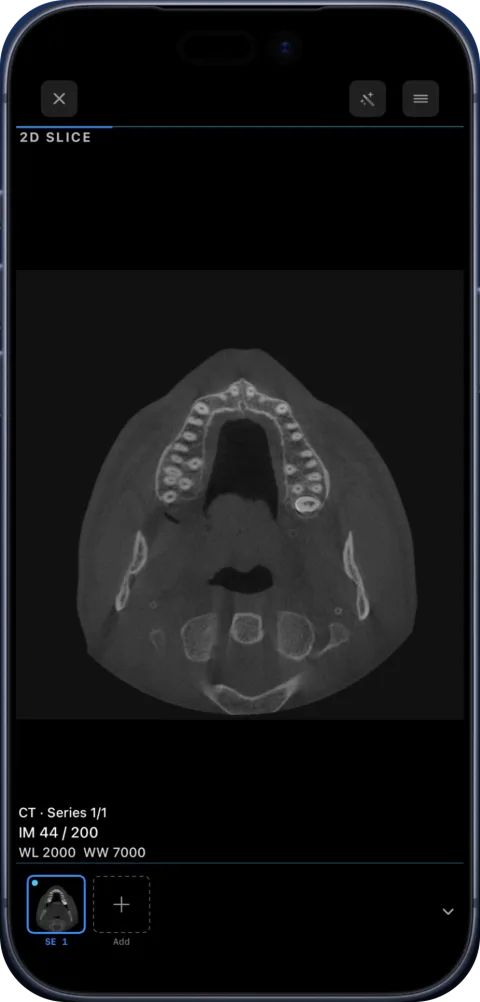
Why iPhone cannot preview .dcm files
DICOM files hold pixel data plus metadata in a format that Quick Look and Photos do not understand. Many DICOM files also have no extension at all, or come compressed with JPEG 2000 or JPEG-LS, which a normal image viewer cannot decode. A dedicated DICOM viewer reads the file header, applies the correct scaling and shows the image with medical window/level controls.
From Mail, WhatsApp or Telegram
- Install Ossidex. Download it from the App Store — it is free, with no account.
- Open the attachment. Tap the file or ZIP in the message and choose the share button.
- Send it to Ossidex. Pick Ossidex in the share sheet, or choose “Save to Files” and import it from Files in the next step.
- Import from Files. In Ossidex tap +, choose Files and select the file, several files, a folder or a ZIP.
- View. Open the study; scroll slices with a finger, pinch to zoom, and drag to change window/level.
Single files vs a whole study
One .dcm file is usually one image — a single slice of a CT or MRI, or one X-ray. A full study is many files. If someone sent you only a few slices, you will see only those. For CT, MRI or CBCT ask for the complete study, ideally as a ZIP or a cloud link, so you can scroll the whole series and, with Pro, use MPR and 3D.
| You received | What you can do |
|---|---|
| One .dcm file | View and measure that image |
| A few .dcm files | Scroll those slices |
| A ZIP or folder of the study | Every series, MPR, 3D, arch (Pro) |
| A share link | Paste the link in Ossidex to download |
Files without an extension
Discs and PACS exports often name files like IM000001 or 1.2.840… with no extension. That is normal. Ossidex recognises DICOM by the content of the file, not the name, so you can select the whole folder without renaming anything. It also recovers files that lack the standard 128-byte DICOM preamble.
What is free
The download is free: you can import any study, scroll it in 2D, adjust window/level and measure, and a built-in sample CBCT unlocks every tool so you can try them. MPR, 3D, the panoramic arch, multi-panel layouts and unlimited export are part of Pro, an optional auto-renewing subscription priced in the App Store for your country.
Where received files end up on an iPhone
| App | Where the file goes | How to import it |
|---|---|---|
| Stays in the message until you save it | Tap the attachment → Share → Save to Files, or share it straight to Ossidex | |
| Inside WhatsApp; documents are not saved to Files automatically | Open the document → Share → Save to Files (or Ossidex) | |
| Telegram | Inside Telegram’s cache | Open the file → Share → Save to Files; Telegram links themselves cannot be downloaded by Ossidex |
| Safari downloads | Files → Downloads | Import from Files → Downloads |
| AirDrop from a Mac | Files → Downloads (or the app you choose) | Import the received folder from Files |
If someone sent many separate .dcm files in a chat, ask them to zip the folder instead — messengers often compress or rename files, and a single ZIP keeps the series together.
Opening the file step by step
- Save it to Files. Use Share → Save to Files and pick a folder you will find again, such as “Scans”.
- Import in Ossidex. Tap + on the home screen, choose Files and select the file, several files, the folder or the ZIP.
- Check the series. Ossidex groups images by their DICOM identifiers. A CT or MRI appears as one or more series under the patient; a single X-ray appears as one image.
- View. Scroll with one finger, pinch to zoom, and drag with two fingers to change window/level. Measurements are in the side menu.
Checking that you have the whole scan
A CT or MRI series usually has tens to hundreds of slices. If the slice counter shows “1 / 1” for a CT, you only have one image of the series; ask for the full folder. If a study shows several series with similar names, they are usually different reconstructions (soft tissue and bone) or MRI sequences — all of them belong to the same examination.
Frequently asked questions
Can I open DICOM in the Photos app?
No. Photos cannot decode DICOM. You need a DICOM viewer app.
The file is huge — will it work over WhatsApp?
Messengers often compress or limit attachments. For full studies a ZIP in Google Drive, Dropbox or WeTransfer is more reliable; paste the link in Ossidex.
Does Ossidex upload my file?
Scans are opened and processed on your iPhone or iPad. There is no account, and your images are not uploaded to Ossidex servers.
Can I convert DICOM to JPG on iPhone?
Yes. Open the image in Ossidex and export it as an image or a PDF report from the Export menu.
Related pages
DCM file viewer: what a .dcm file is and how to open it on any device
What a .dcm file is, which DCM viewer to use on Windows, Mac, a browser or iPad, why one file shows one image, and how to convert DCM to JPG safely.
What is a DICOM file? The medical imaging format explained
DICOM is the standard file format for medical images like CT, MRI and X-ray. What is inside a DICOM file, how studies and series work, and how to open one.
Open a scan from a cloud link
Open a CT, MRI or CBCT shared via Google Drive, Dropbox, OneDrive, WeTransfer or iCloud on iPhone or iPad: paste the link in Ossidex to download it.
Free DICOM viewer for iPhone and iPad: what’s free, what’s Pro
Ossidex is free to download: import any CT, CBCT or MRI study, view it in 2D and measure. Here is exactly what is free and what Pro adds — no surprises.