
Cybermed OnDemand3D
Open OnDemand3D CBCT scans on iPad and iPhone
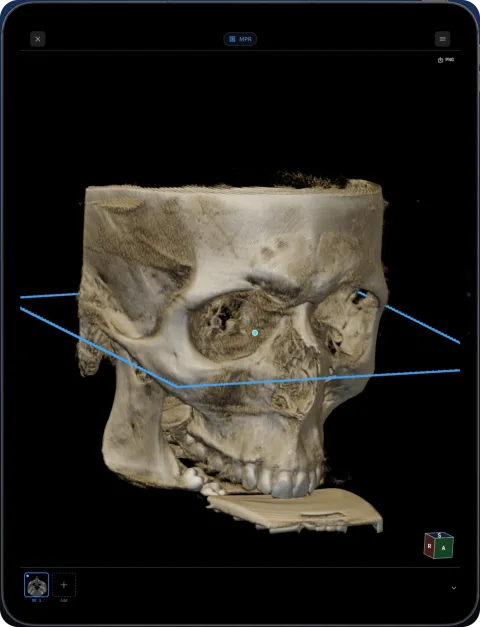
OnDemand3D by Cybermed and its Project Viewer run on Windows. To open an OnDemand3D CBCT on iPad or iPhone, export the scan as standard DICOM and import it in Ossidex, a DICOM viewer app for iPhone and iPad with MPR, 3D and a panoramic arch.
How OnDemand3D shares scans
OnDemand3D’s FAQ describes several ways to pass on a case: burning a CD or USB from the Database Manager, sending to PACS, exporting STL surfaces, and a separately installable Project Viewer for OnDemand3D project files. Project files keep the planning work but open only in Cybermed software. The underlying CBCT is DICOM, and a DICOM export is what an iPad viewer needs.
OnDemand3D is Windows software; Cybermed does not list a Mac version.
How to open an OnDemand3D scan in Ossidex
- Export DICOM. From the Database Manager, export or burn the study as DICOM rather than only a project file. If you received a disc, check it contains DICOM images.
- Copy to the device. Copy the folder or disc to iCloud Drive or a USB-C drive, or zip it and share a link.
- Import. In Ossidex tap + and choose the folder, archive or link.
- View. Open the CBCT in MPR, 3D or the arch view with cross-sections.
Reading the scan in Ossidex
OnDemand3D is often used by imaging centres and implant practices to prepare and share cases, so the file you receive may be a project rather than the raw scan. Once you have the DICOM series, it opens in Ossidex like any CBCT: the arch view gives a panorama with numbered cross-sections for implant sites and impacted teeth, MPR shows three linked planes with oblique and slab options, and the 3D view renders bone and teeth. Measurements are in millimetres from the DICOM pixel spacing.
If the scan came from a hospital CT rather than a dental CBCT, it opens the same way; for CT, true Hounsfield values are shown under the HU probe.
Asking an imaging centre for the right files
When an imaging centre uses OnDemand3D, ask specifically for “the DICOM files of the CBCT, not the project”, ideally as a ZIP or a download link. That avoids receiving only a project that needs Cybermed software, and a link can be pasted straight into Ossidex (link import).
Common problems
- Only a project file — Ossidex cannot open OnDemand3D projects, including implant plans in them. Export the DICOM series.
- Scans stored in PACS — if your practice sends OnDemand3D studies to a PACS with DICOMweb, Ossidex can download them directly (PACS / DICOMweb).
- STL models — STL exports are surfaces, not scans, and are not opened by Ossidex.
OnDemand3D is a trademark of Cybermed Inc.. Ossidex is an independent viewer and is not affiliated with, endorsed by or sponsored by Cybermed Inc.. Vendor details below come from the vendor’s public documentation and may change between software versions.
Frequently asked questions
Does OnDemand3D run on Mac or iPad?
Cybermed lists Windows only. Ossidex opens the DICOM export on iPad and iPhone.
Will I see the implant plan made in OnDemand3D?
No. Plans live in OnDemand3D project files. Ossidex shows the CBCT volume itself.
Is the export anonymised?
That depends on the export settings in OnDemand3D. Ossidex can also make an anonymised export when you share from the app.
Sources
Related pages
Open CBCT from any scanner
What is on a CBCT disc, what to export, and vendor-by-vendor instructions.
Dental CBCT viewer
Panoramic arch, cross-sections, MPR and 3D for cone beam CT from any scanner.
Vatech Ez3D-i
Ez3D-i discs and exports with DCM files and the Simple Viewer.
NewTom NNT
DICOM exports and NNT Viewer discs from NewTom CBCT units.
Mobile PACS viewer: connect iPhone and iPad via DICOMweb
Connect Ossidex to your PACS over DICOMweb: search studies with QIDO-RS, download with WADO-RS, Basic or OAuth sign-in stored in the Keychain.
Reviewing a CBCT before an implant
How to review a CBCT at a planned implant site: arch, cross-sections, ridge height and width, canal and sinus proximity. Ossidex is a viewer only.