
Vatech
Open Vatech Ez3D-i CBCT scans on iPad and iPhone
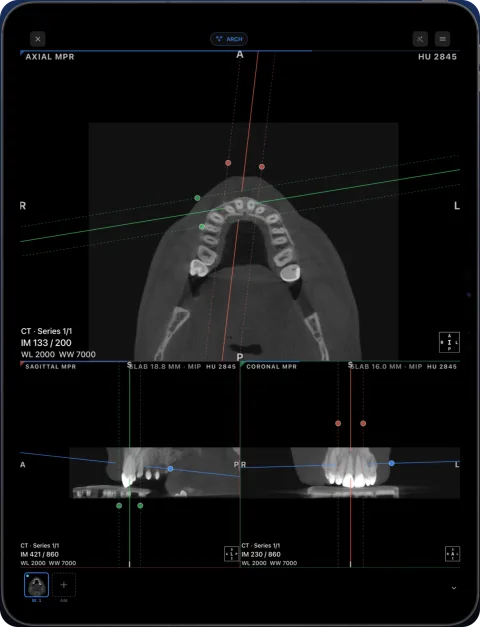
Vatech’s Ez3D-i and the Simple Viewer on its discs run only on Windows. To open a Vatech CBCT on iPad or iPhone, use the “DCM Files” from the disc or export in Ossidex, a DICOM viewer app for iPhone and iPad, which shows the scan in MPR, 3D and a panoramic arch.
What an Ez3D-i export contains
Vatech’s support pages describe the Ez3D-i export (CD icon, version 5.2.6.1 and later): you choose a destination — CD/DVD, USB or a local folder — and the contents. By default two items are checked:
- DCM Files — the scan as standard DICOM. This is what Ossidex reads.
- Viewer — the Simple Viewer (or Simple Viewer Lite for weaker graphics cards), started through a “Simple Viewer Launcher” on Windows.
- Project File (optional) — Ez3D-i’s own project data, which only Vatech software opens.
The export can also be packed as a password-protected ZIP. Vatech states its software does not run on Mac, so on Apple devices the DICOM files are the way in.
How to open an Ez3D-i scan in Ossidex
- Export with DCM Files checked. In Ez3D-i, open the export dialog, keep “DCM Files” selected (the viewer is optional) and export to USB or a folder. If you received a disc, use it as is.
- Copy the whole folder. Copy the export or disc folder to iCloud Drive or a USB-C drive, or send the ZIP by link.
- Import. In Ossidex tap + and choose the folder or ZIP. For a password-protected ZIP, Ossidex asks for the password.
- View. Open the study and use the arch view, MPR or 3D.
Reading a Vatech CBCT in Ossidex
Vatech scans (for example from PaX-i3D, Green or Picasso units) exported as DICOM open as one CBCT series. For implant and third-molar questions, start in the arch view: trace the arch, and the panorama and numbered cross-sections replace the panoramic and cross-section views you know from Ez3D-i. MPR shows the three planes with linked crosshairs, and 3D renders the volume with bone and teeth presets. Nerve tracings, implant plans and measurements saved in an Ez3D-i project are not part of the DICOM files, so they do not appear; add your own measurements in Ossidex.
Common problems
- Only a project file was exported — Ossidex cannot open Ez3D-i project data. Re-export with “DCM Files”.
- Password prompt — the export was zipped with a password; ask the sender for it. Ossidex only asks for passwords on genuinely encrypted archives.
- Disc works only with the launcher — copy the whole disc; the DCM files are usually in their own folder next to the viewer.
Ez3D-i is a trademark of Vatech Co., Ltd.. Ossidex is an independent viewer and is not affiliated with, endorsed by or sponsored by Vatech Co., Ltd.. Vendor details below come from the vendor’s public documentation and may change between software versions.
Frequently asked questions
Can I run Ez3D-i on a Mac or iPad?
Vatech states Ez3D-i supports Windows only. Ossidex opens the DICOM export on iPad and iPhone.
What is the difference between the viewer and DCM files?
The viewer is a Windows program; DCM files are the images. Ossidex needs only the DCM files.
Do Picasso and other Vatech scanners work?
Scans exported as DICOM from Vatech software open the same way, regardless of the unit.
Sources
Related pages
Open CBCT from any scanner
What is on a CBCT disc, what to export, and vendor-by-vendor instructions.
Dental CBCT viewer
Panoramic arch, cross-sections, MPR and 3D for cone beam CT from any scanner.
Carestream CS 3D Imaging
Discs with CS 3D Imaging Lite and DICOM volume exports.
OnDemand3D
Export DICOM from Cybermed OnDemand3D instead of a project file.
Open DICOM in ZIP, RAR, 7z or ISO archives on iPhone and iPad
Ossidex unpacks DICOM studies from ZIP, RAR (incl. multi-volume), 7z, TAR/GZ and ISO disc images — including password-protected archives — on iPhone and iPad.
Disc with only a Windows .exe viewer
Dental and hospital discs often ship a Windows-only viewer. The images next to it are standard DICOM — copy the whole folder and open it on iPad, iPhone or Mac.